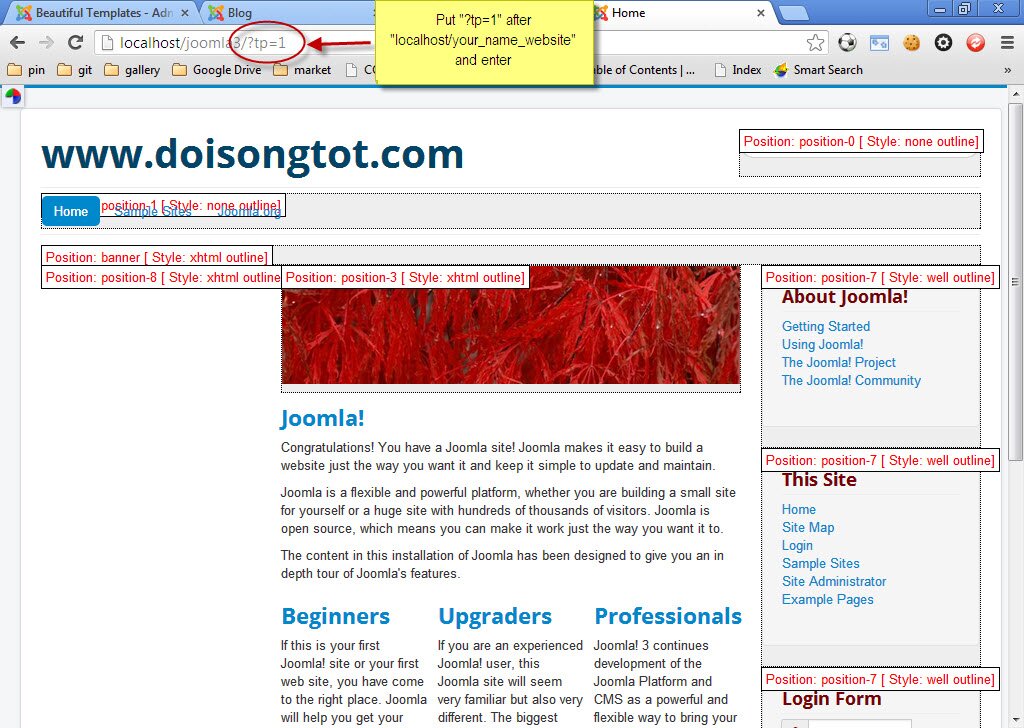
How to create slider for a site
After creating main menu, one of next steps for accomplishing a site is to make slider based on joomla. Example for this post is still template "Birdsign" to continue previous posts so that other people can keep track easily.
Step 1: Log in both of siteas an admin with address formula "localhost/your_name_folder/administrator.
Address to login site setup without quickstart: localhost/lamtudau25/administrator
Address to login site setup with quickstart: localhost/quickstart1/administrator
User and password for both are "admin"
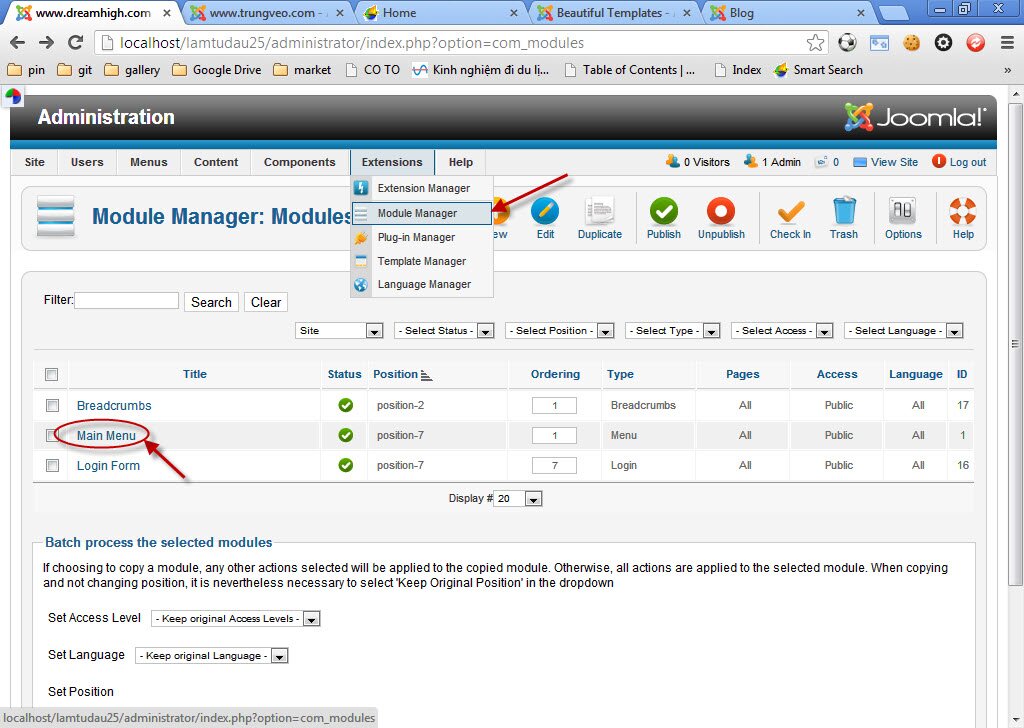
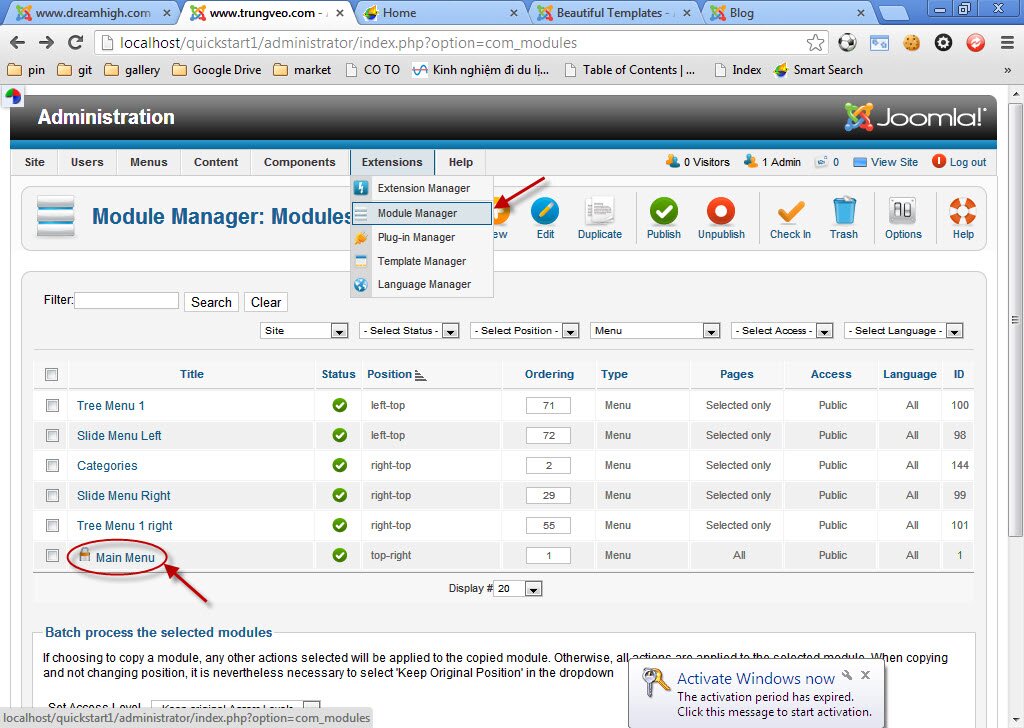
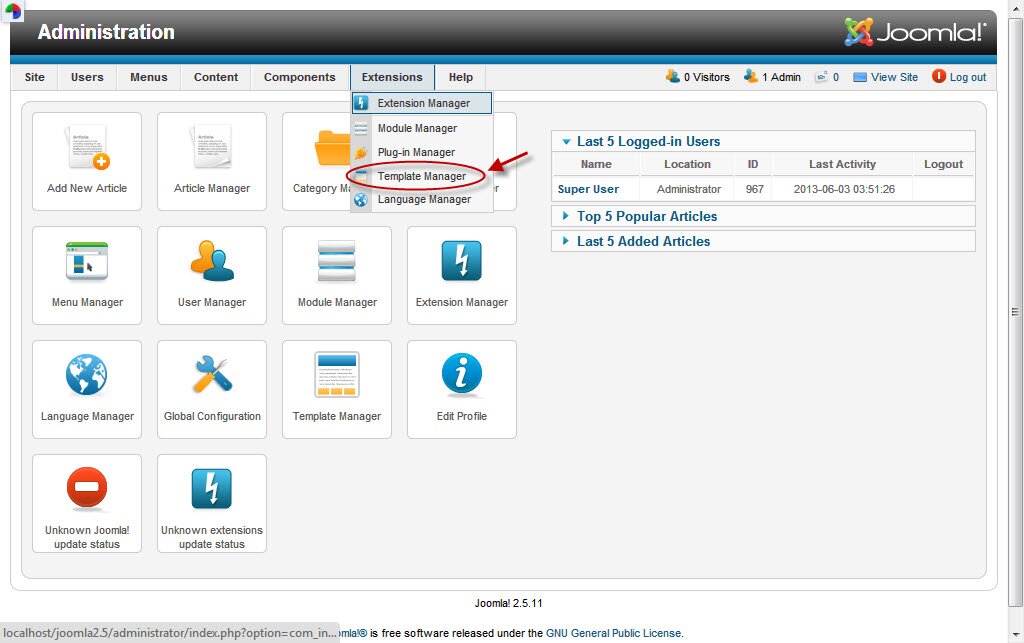
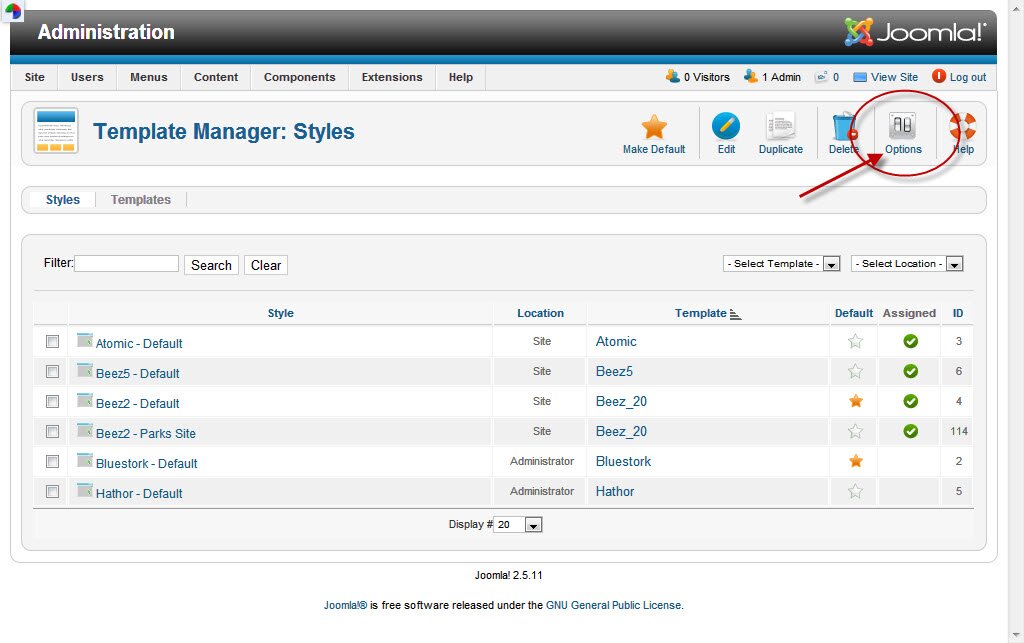
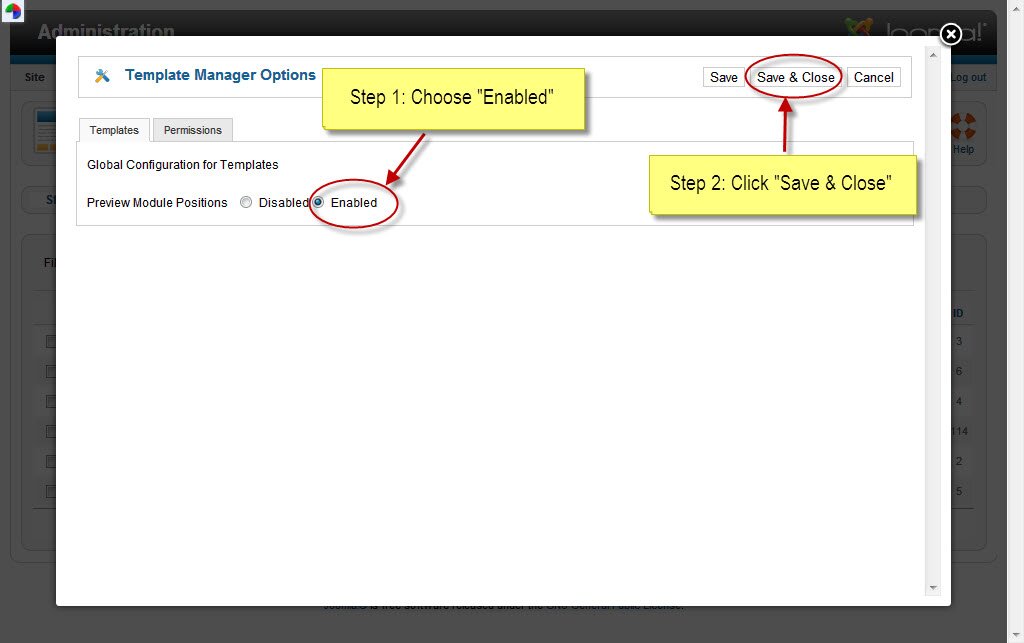
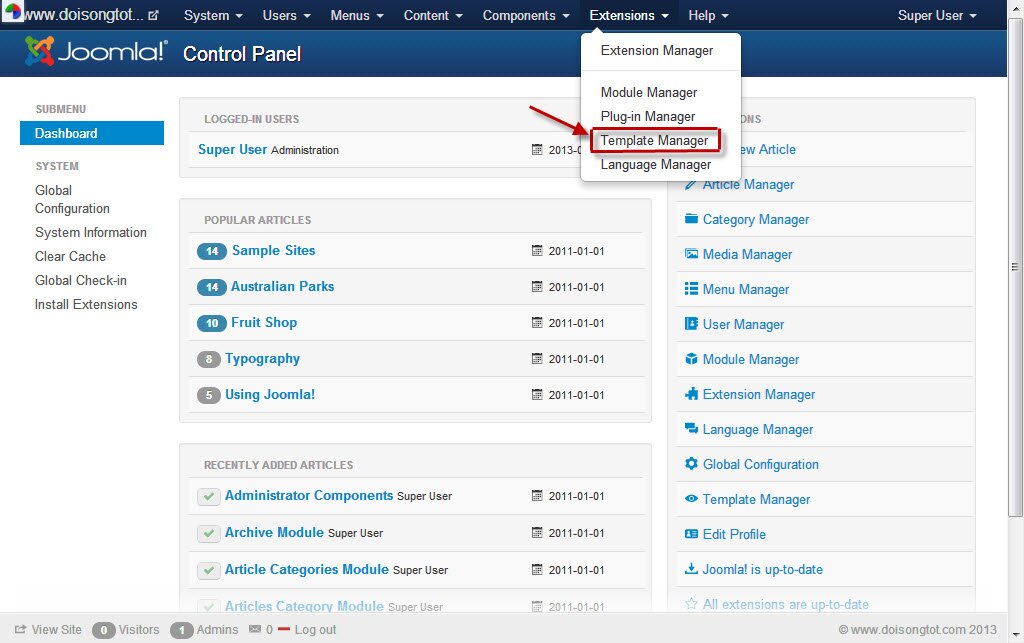
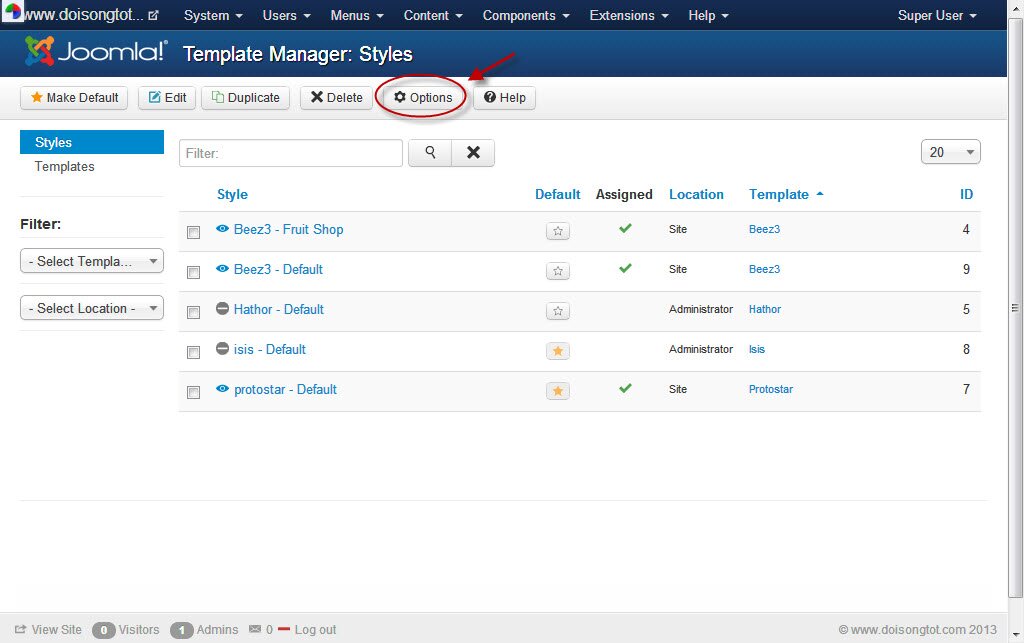
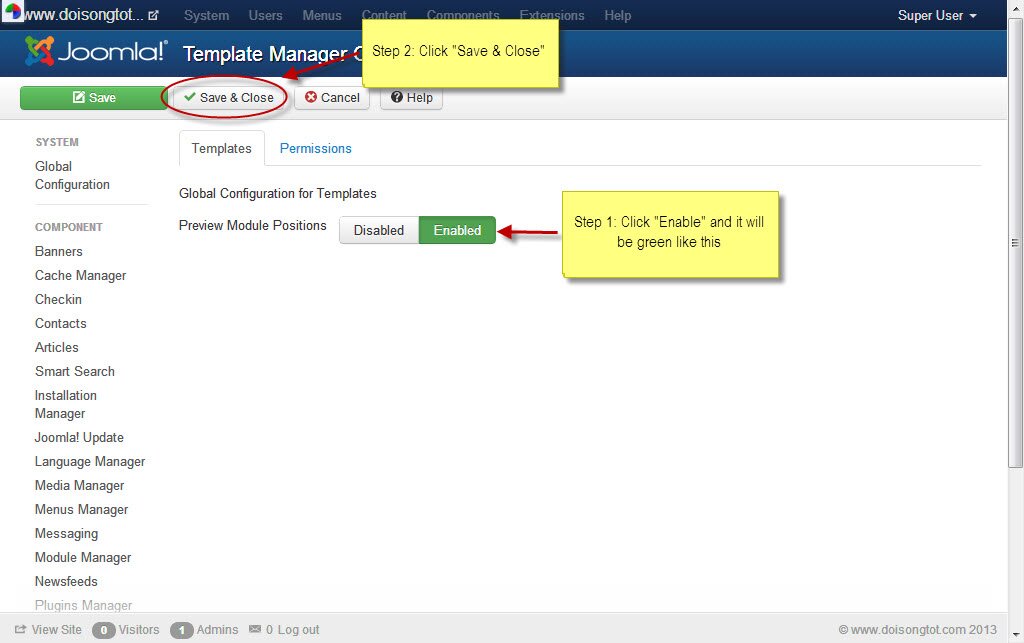
Step 2: After loging in, do as these pitures:
(*) site with quickstart
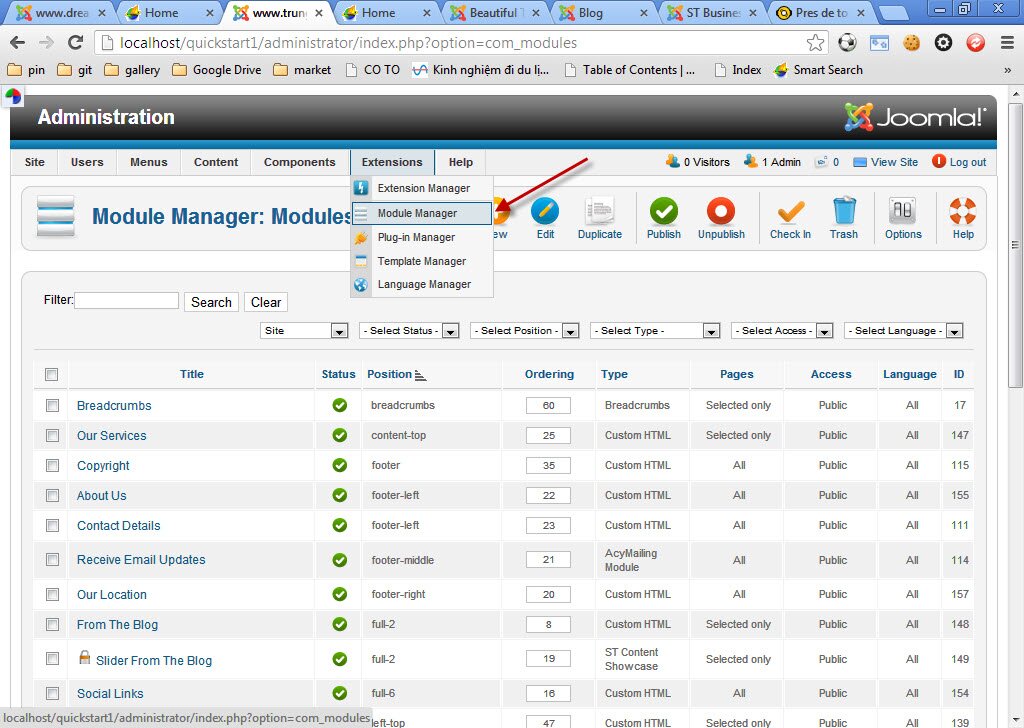
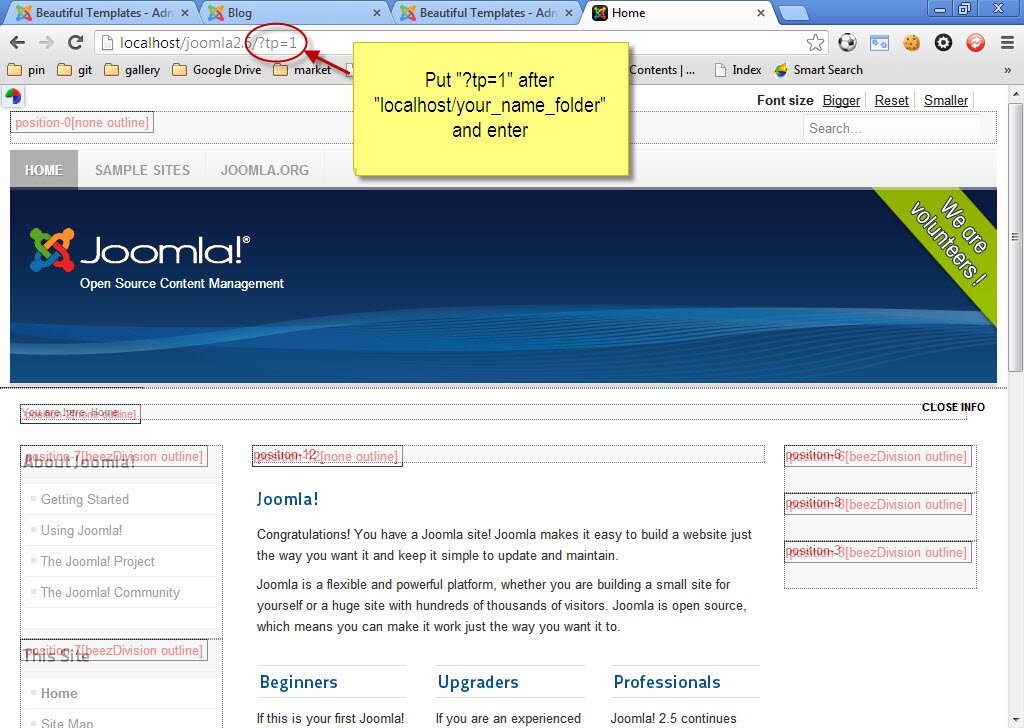
Write in a new tab this address "localhost/quickstart1/?tp=1" to see each modules so that we can find place of slider. Do as directions in this piture:
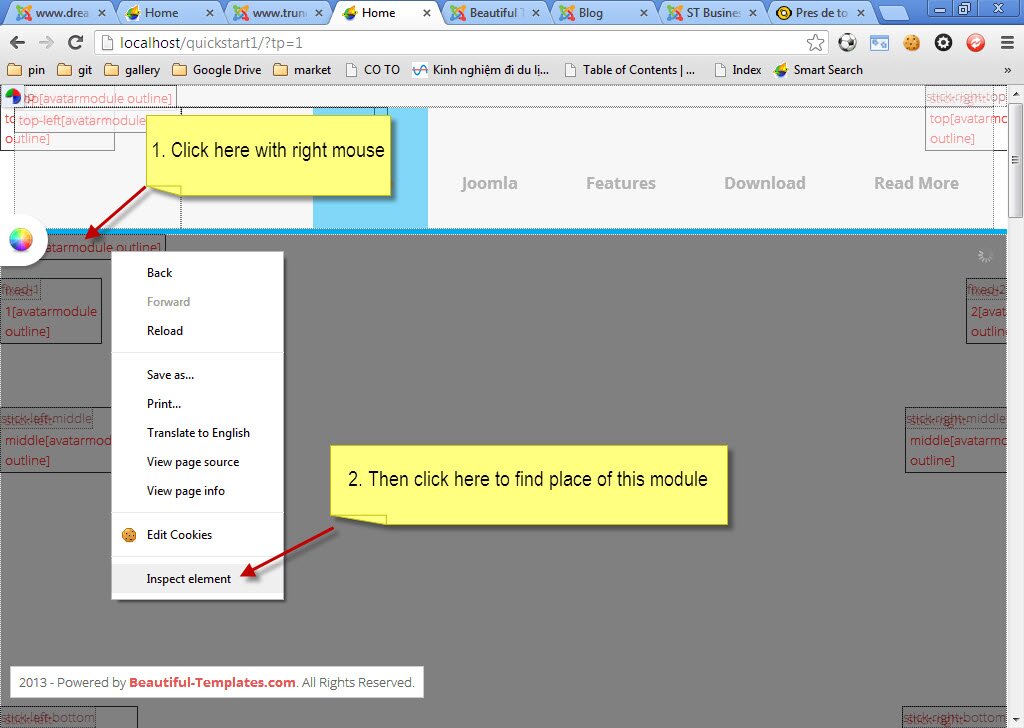
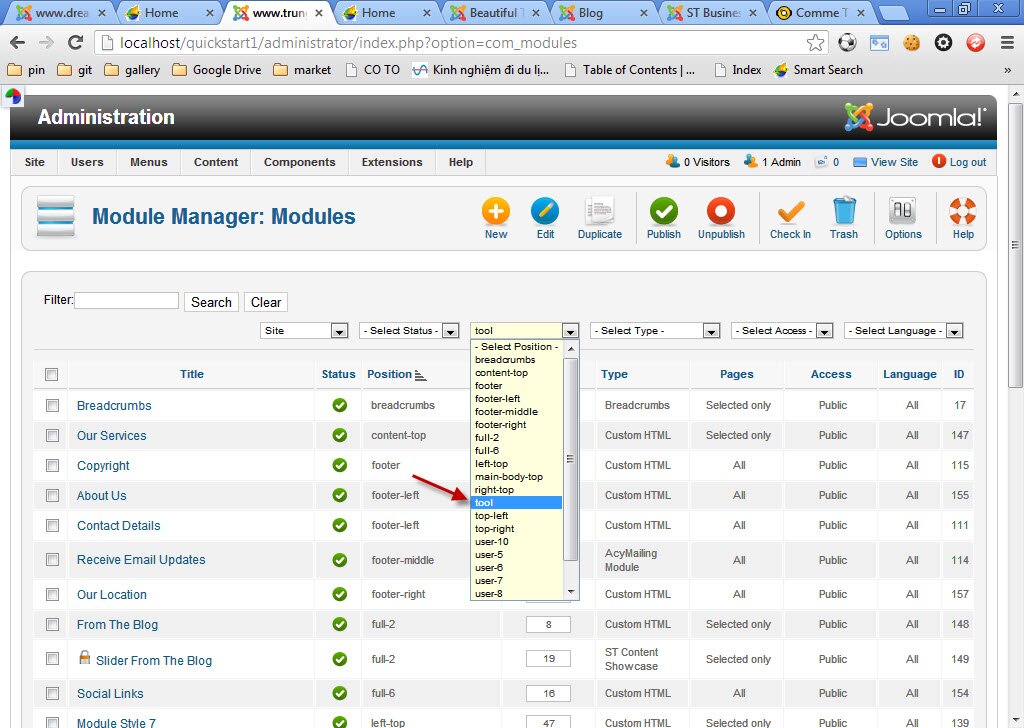
Later on, we can find place of slider module is "tool".
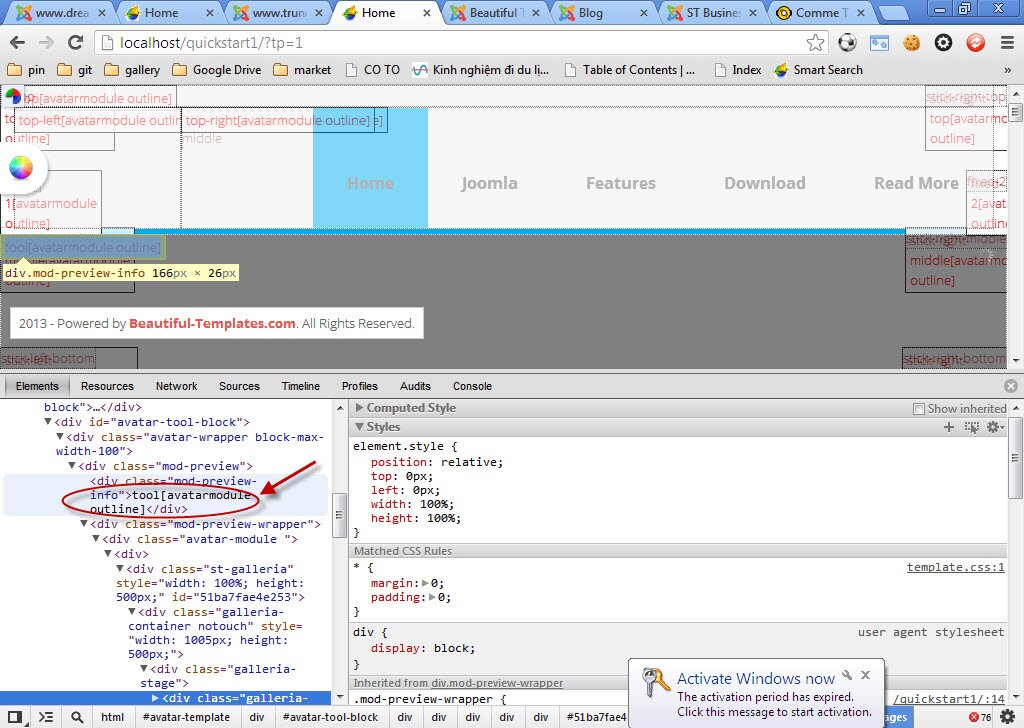
Step 2: Choose "tool" as red arrows leads.
(*) site with quickstart
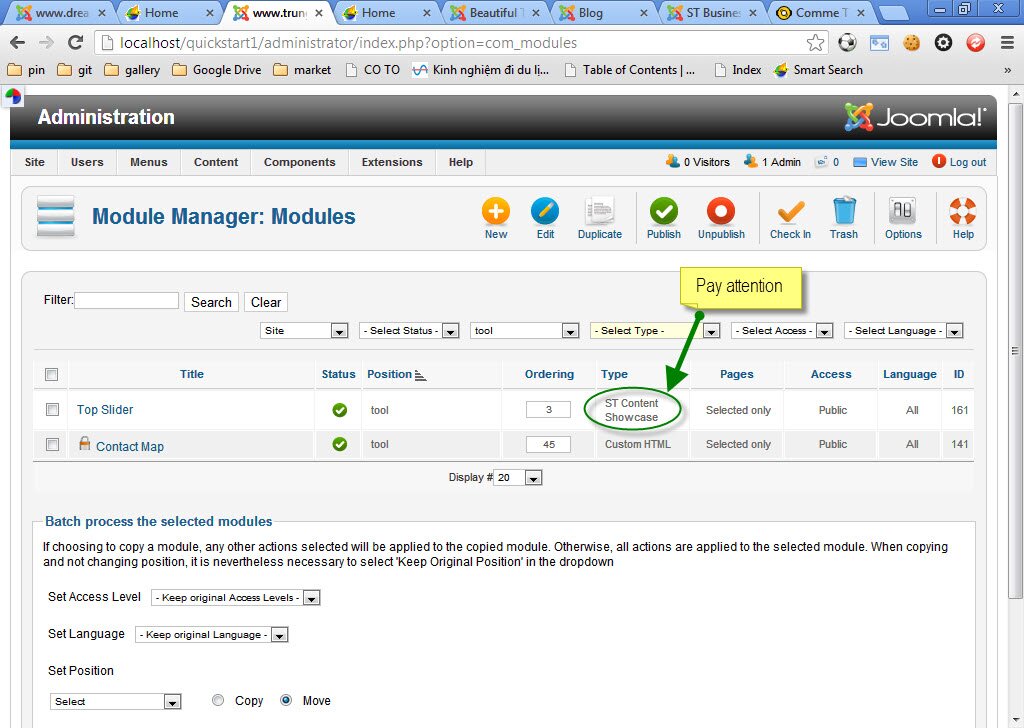
After doing it, the tab will be shown like this picture and pay attention on green cỉrcle.
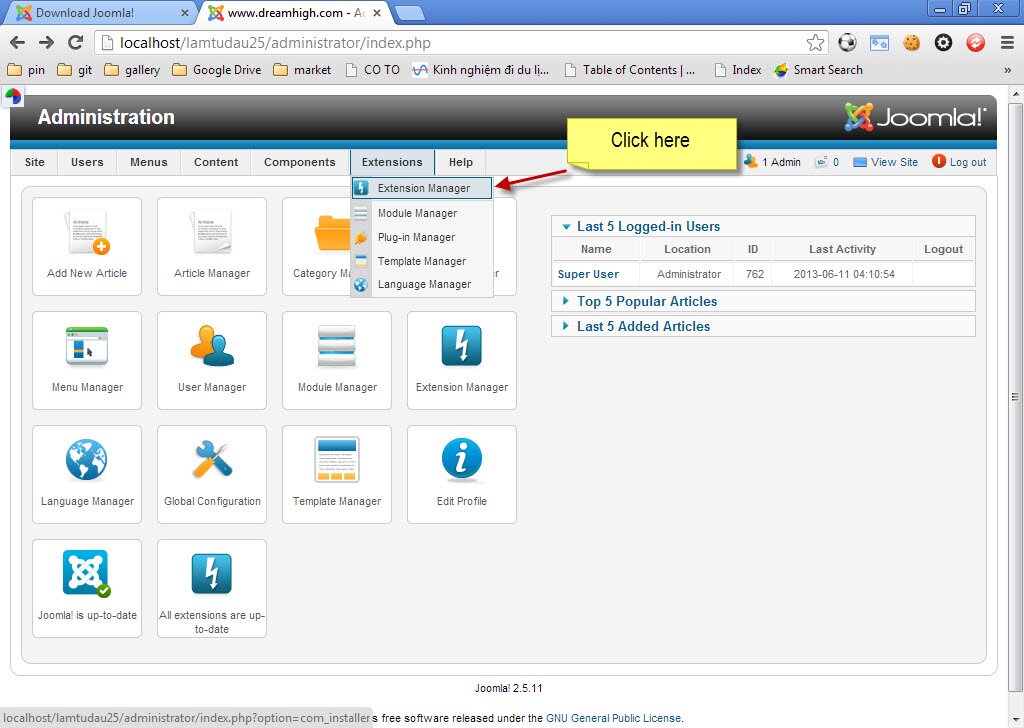
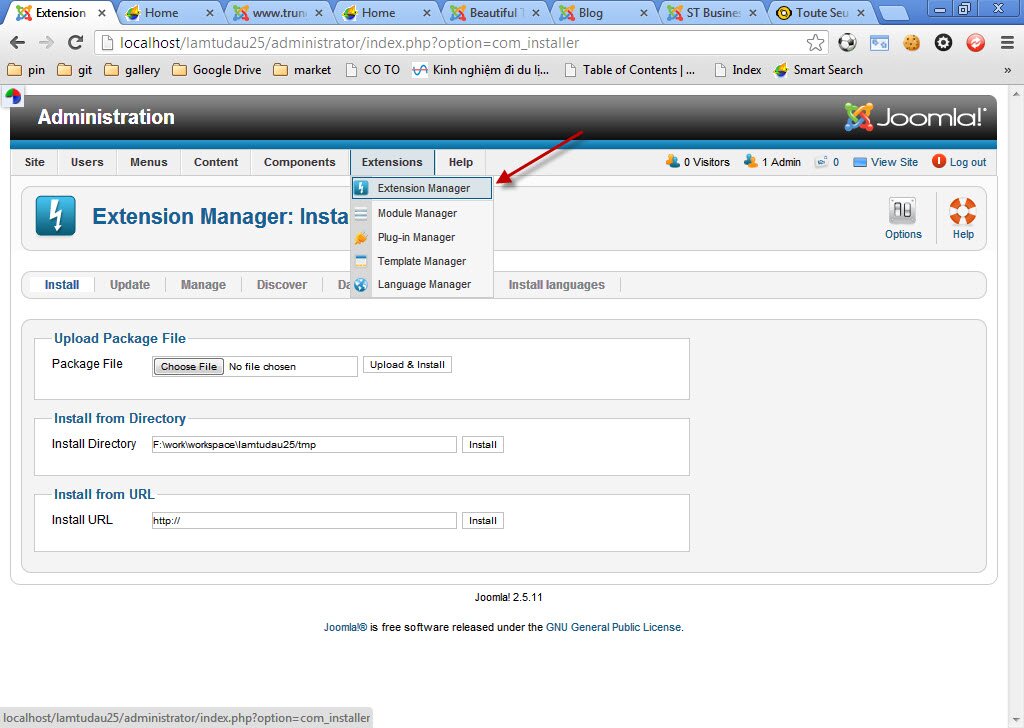
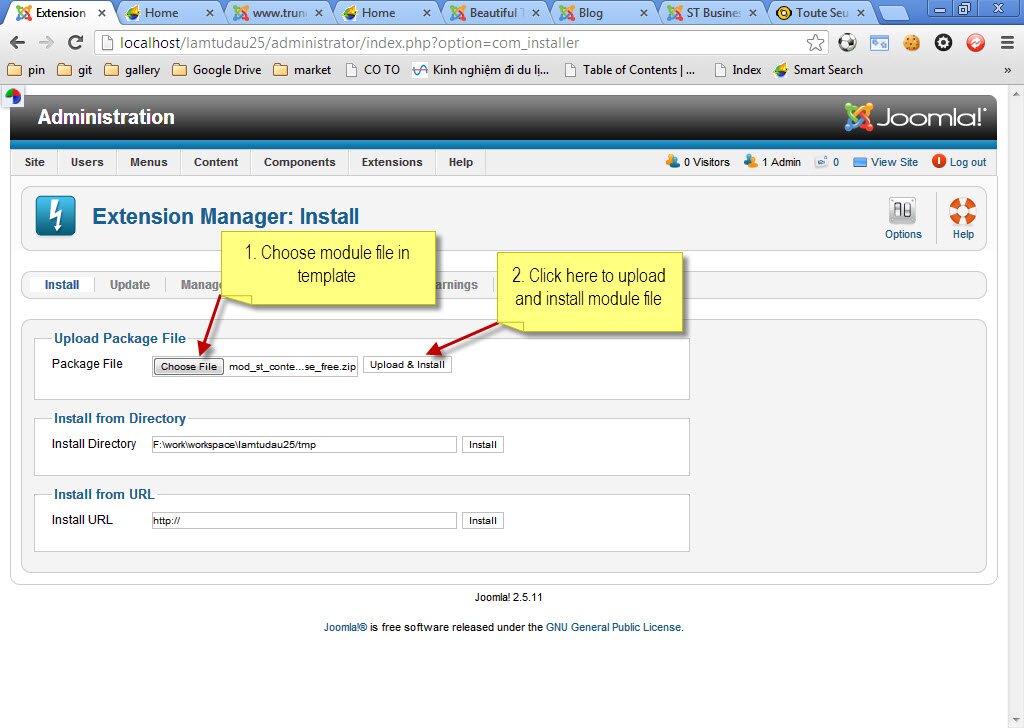
Step 3: Go to "Extension manager" of "localhost/lamtudau25/administrator" to upload modules from template "Birdsign".
(**) site without quickstart
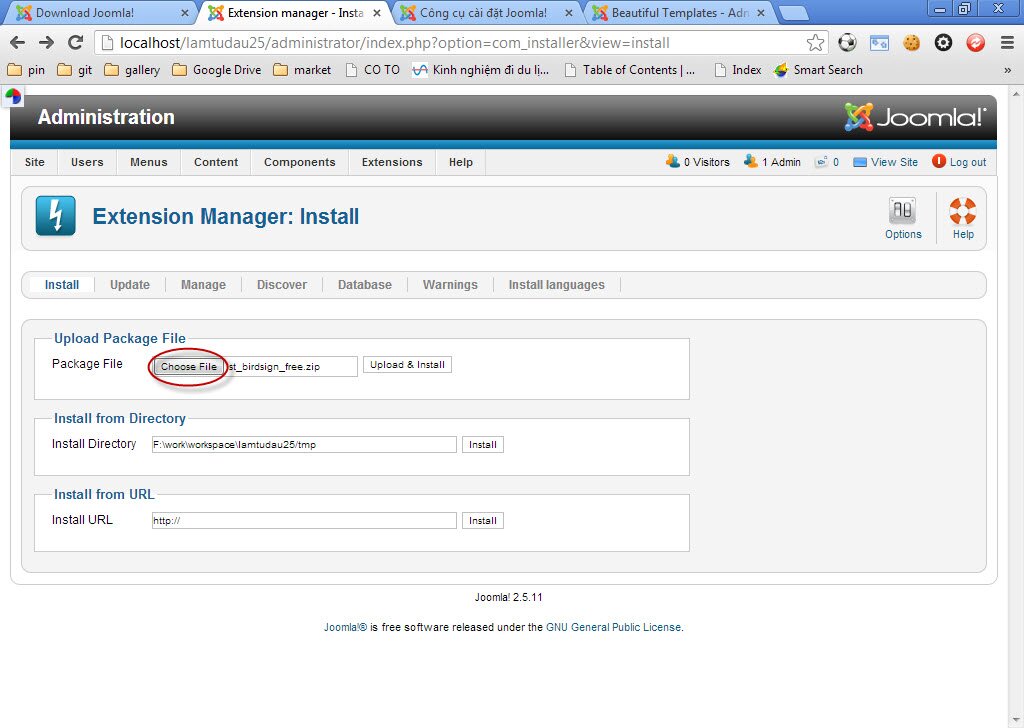
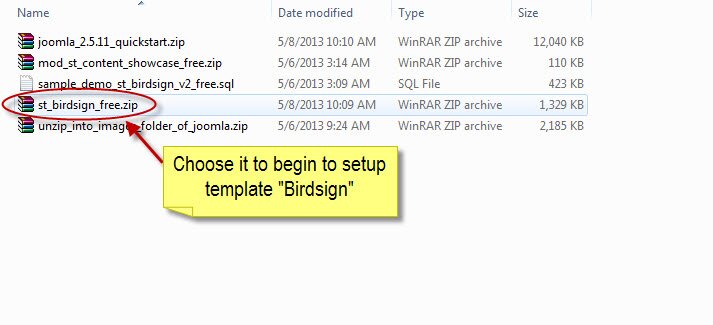
Choose file:
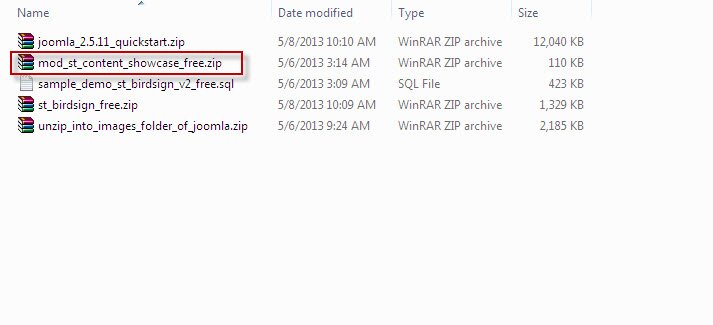
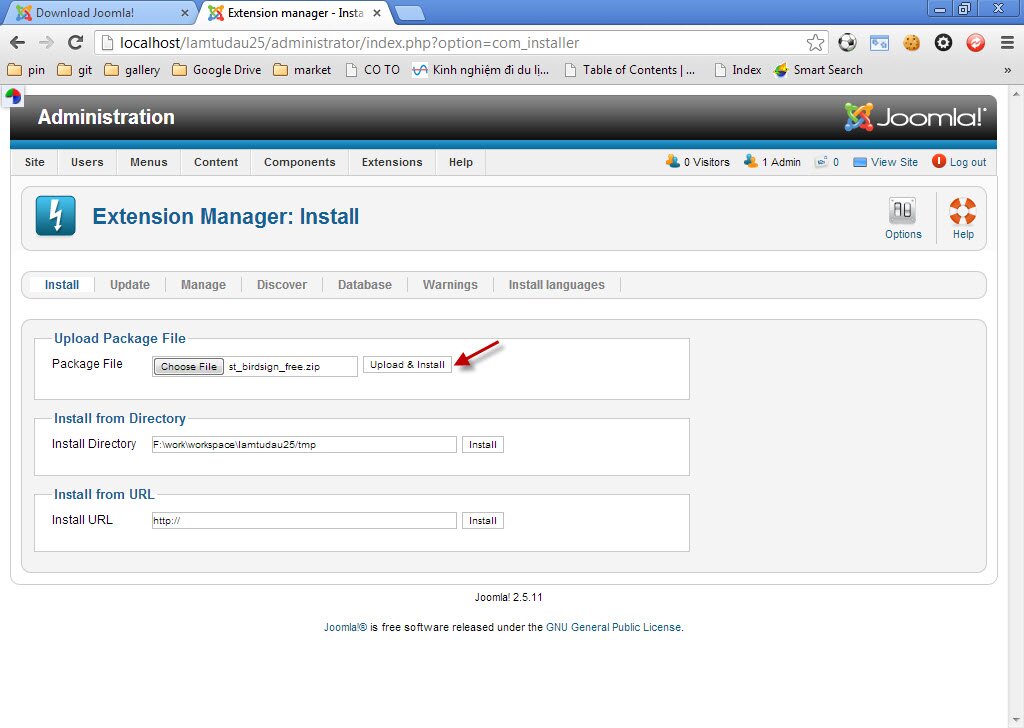
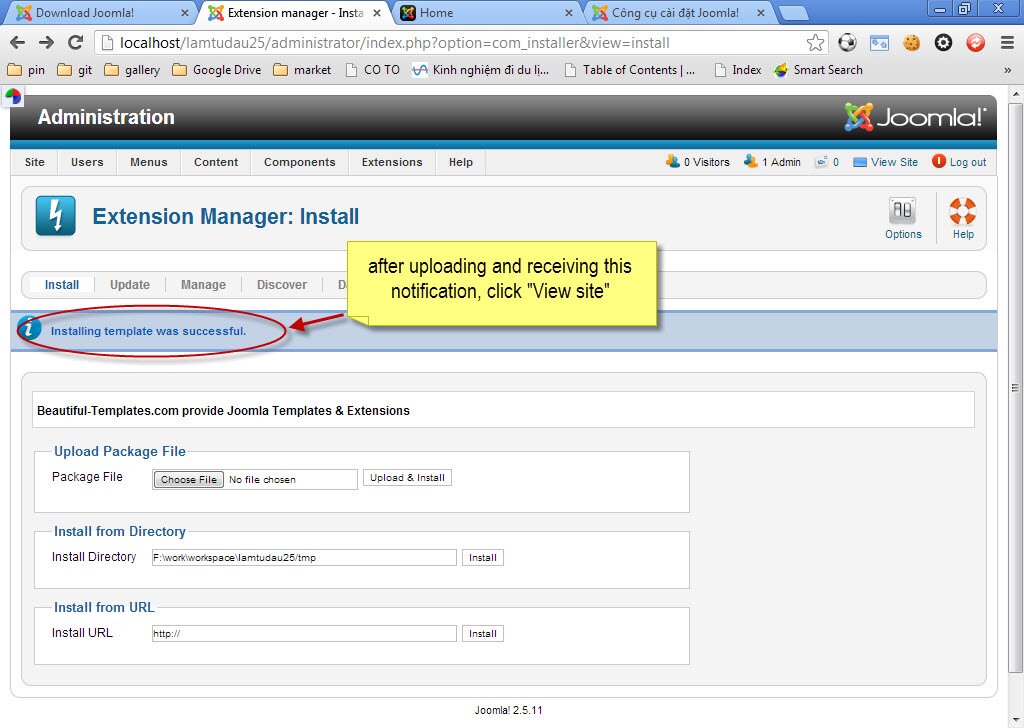
After choosing module file in template, do as this picture indicates:
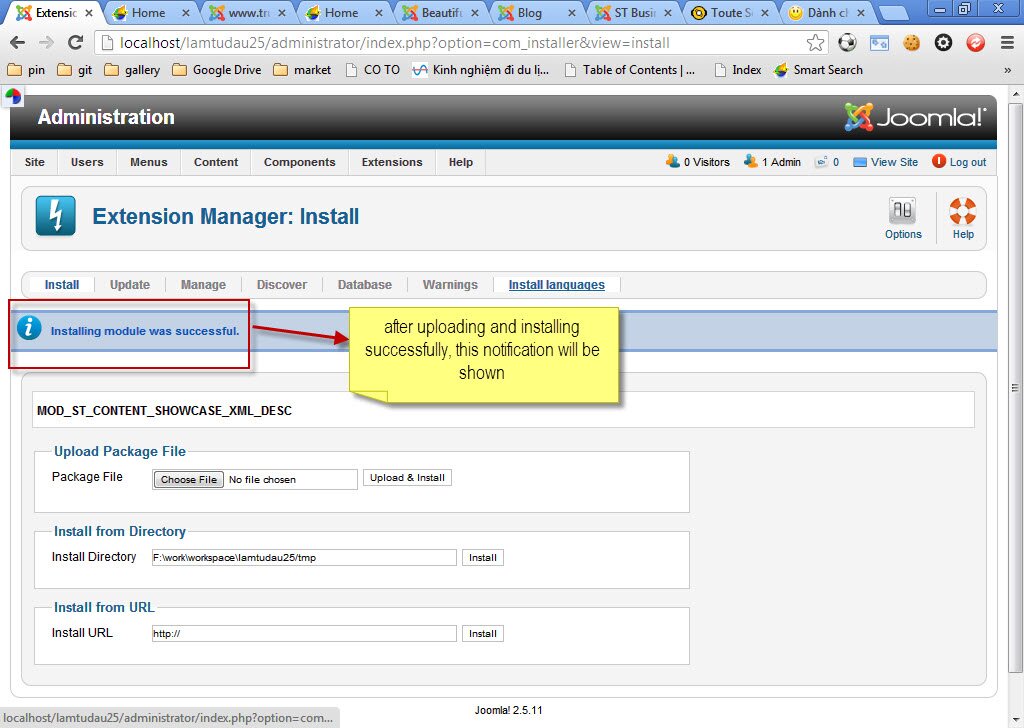
If uploading successfully, this notification will appear.
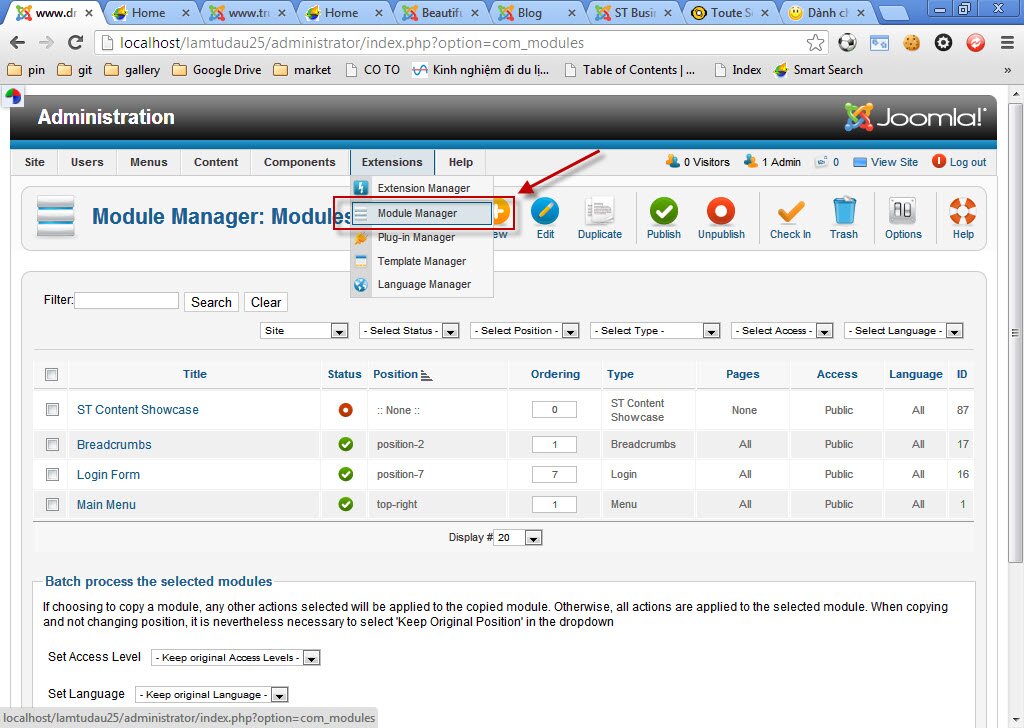
Step 4: Go to "Module manager"
(**) site without quickstart
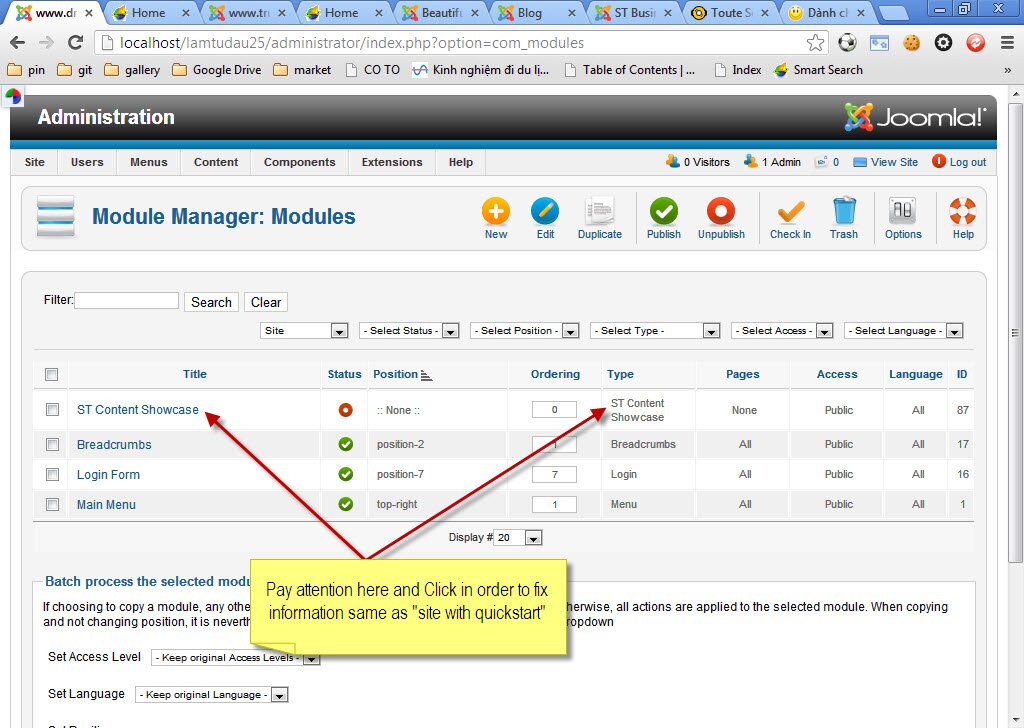
Then go to "ST content showcase" to fix information totally same as site with quickstart.
Step 5: Continue site with quickstart that we have opened from step 2.
(*) site with quickstart
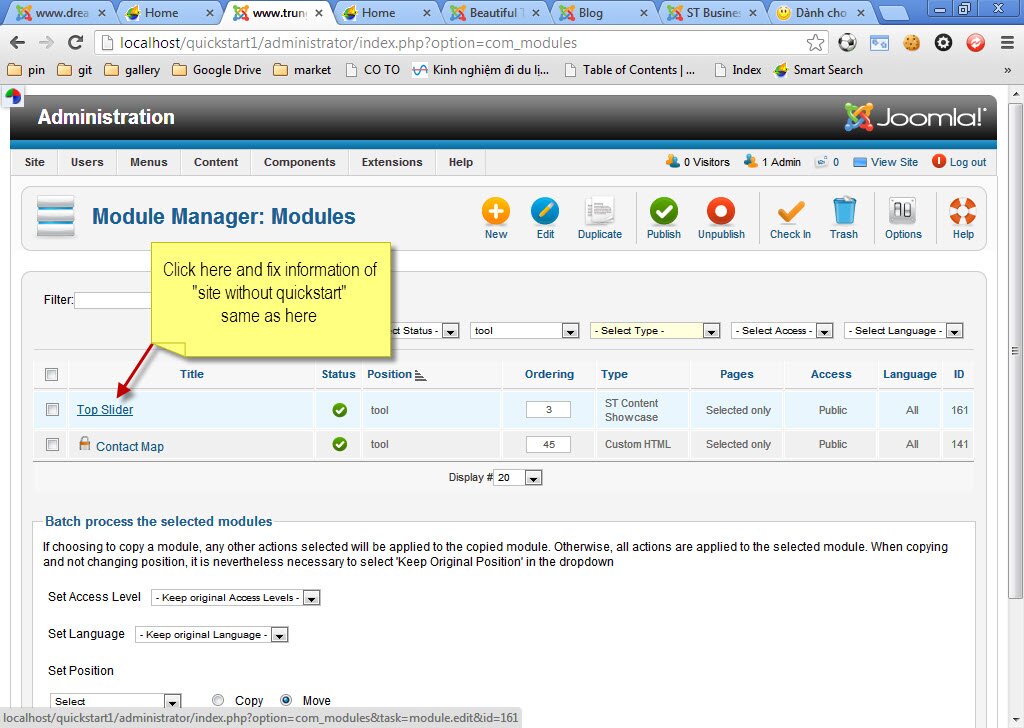
After opening "top slider", the tab will be shown as below:
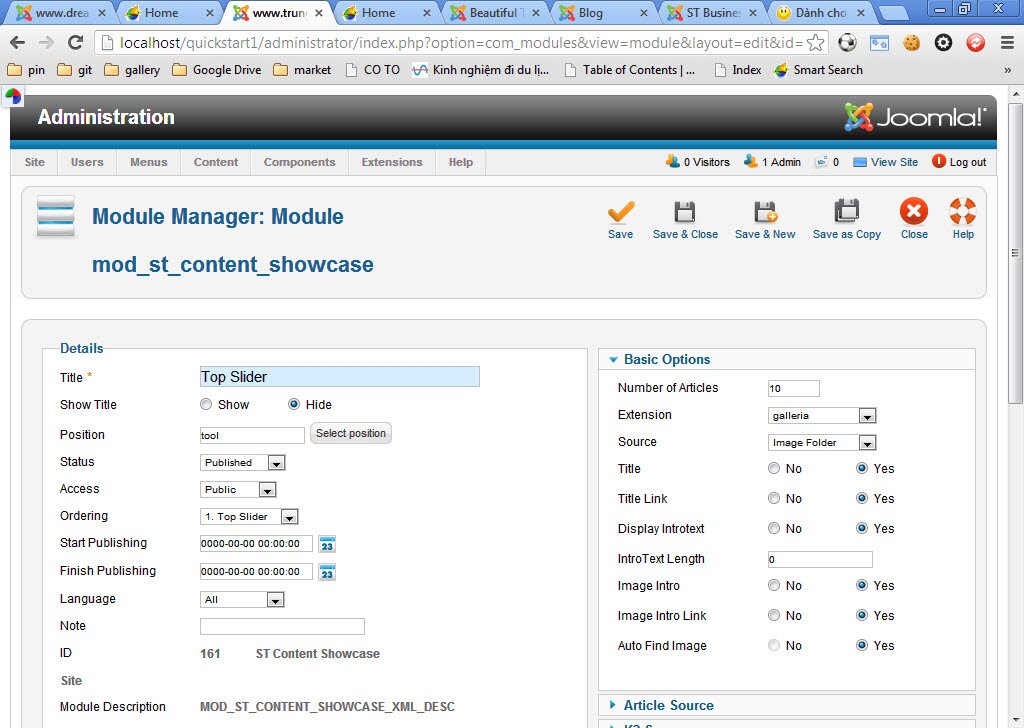
Step 6: After going to "ST content showcase", this tab will appear:
(**) site without quickstart
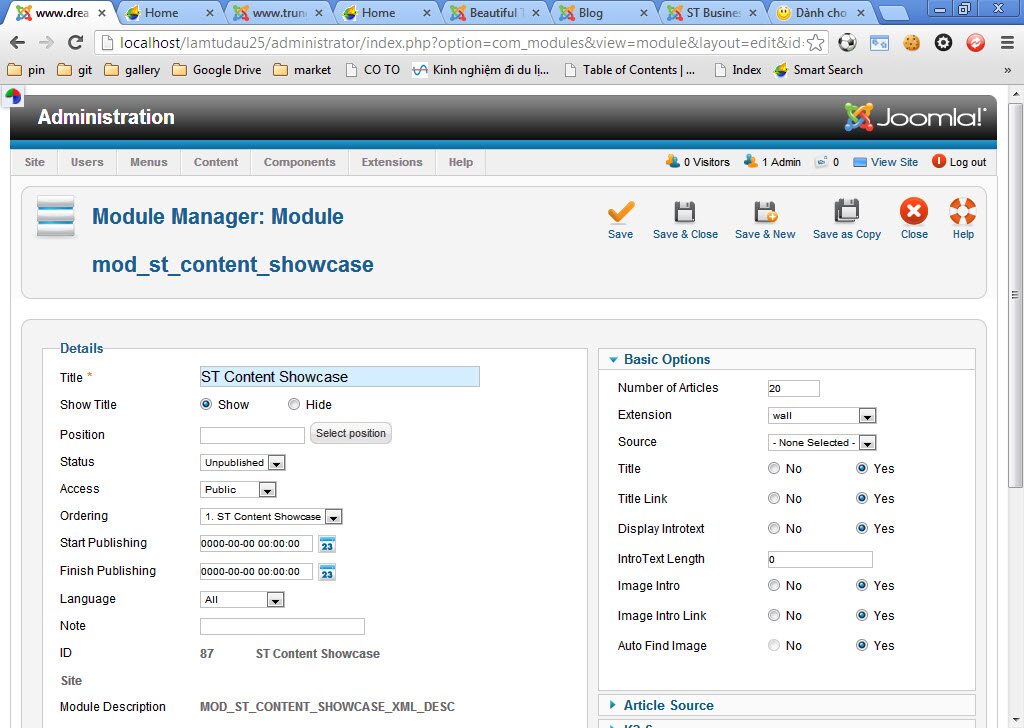
So now, fix all information of (**) - site without quickstart totally same as information of (*) - site with quickstart.
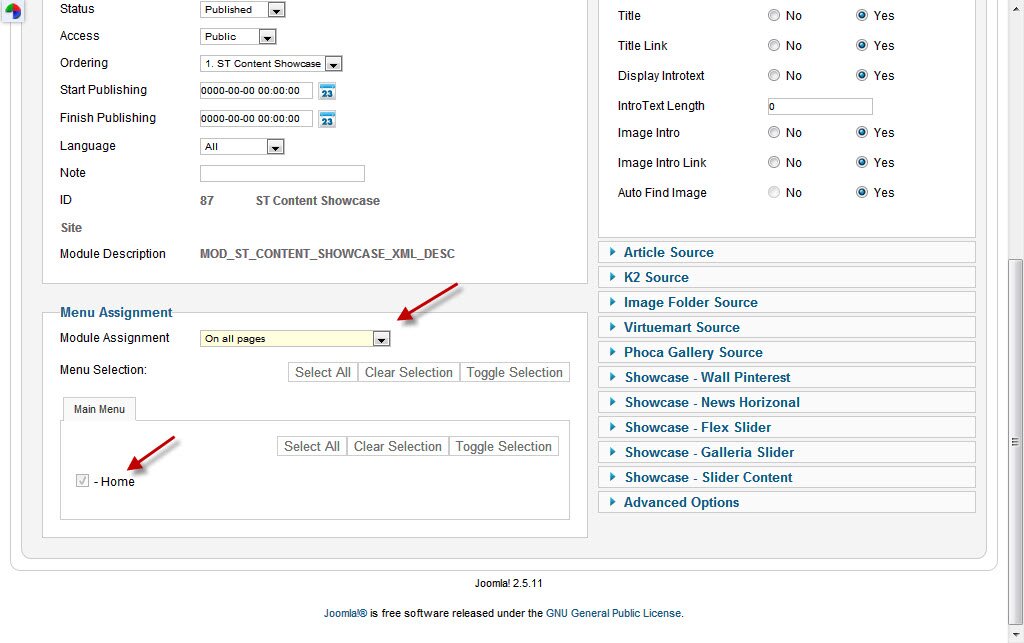
Red arrows indicate information which you need to change:
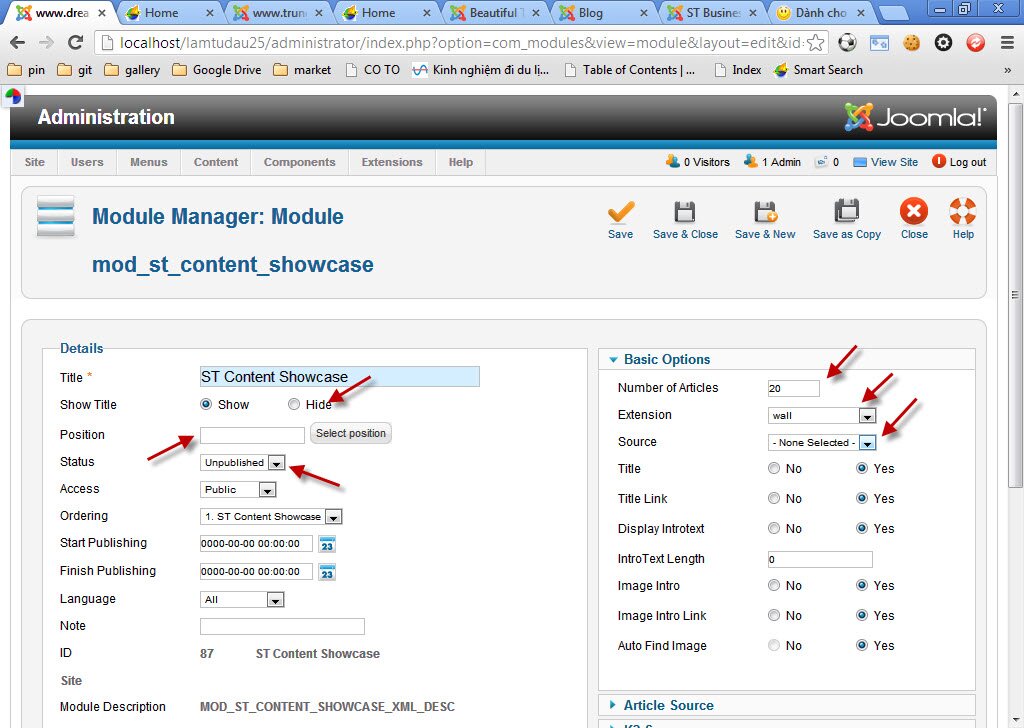
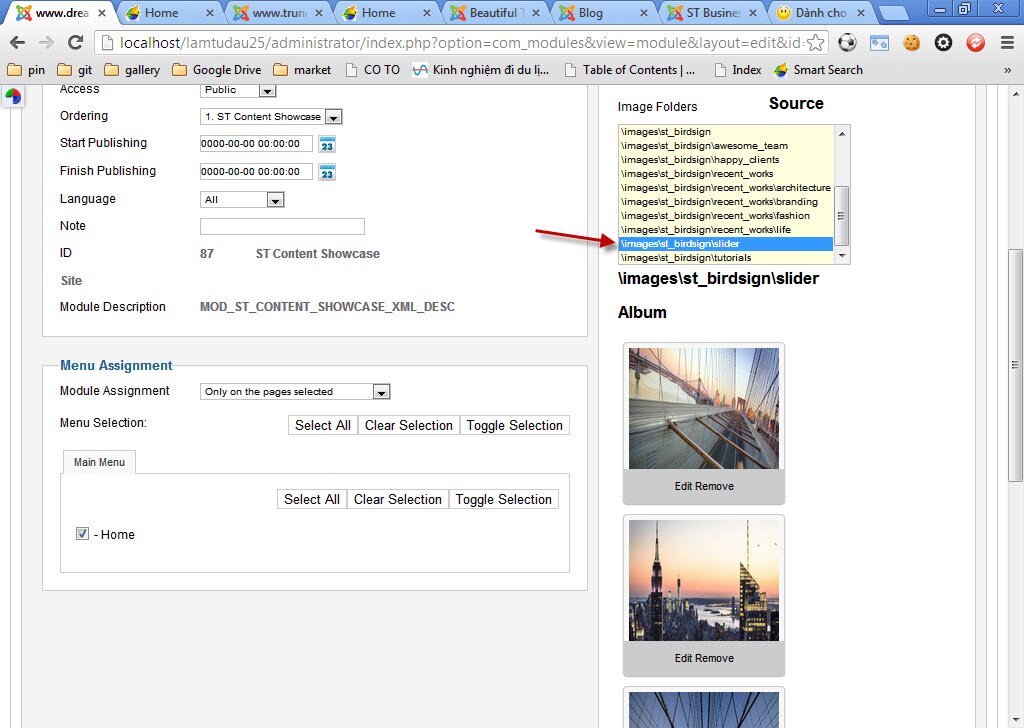
For "Image folder source", you can upload your own images or use default images of templates Birdsign.
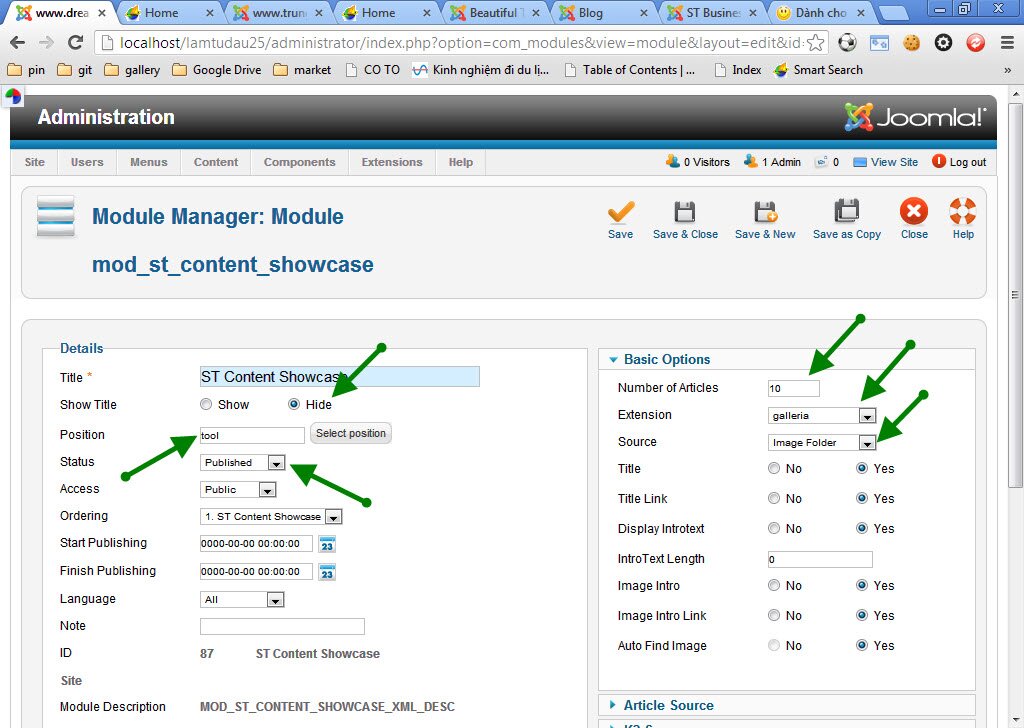
These green arrows show parts after being changed:
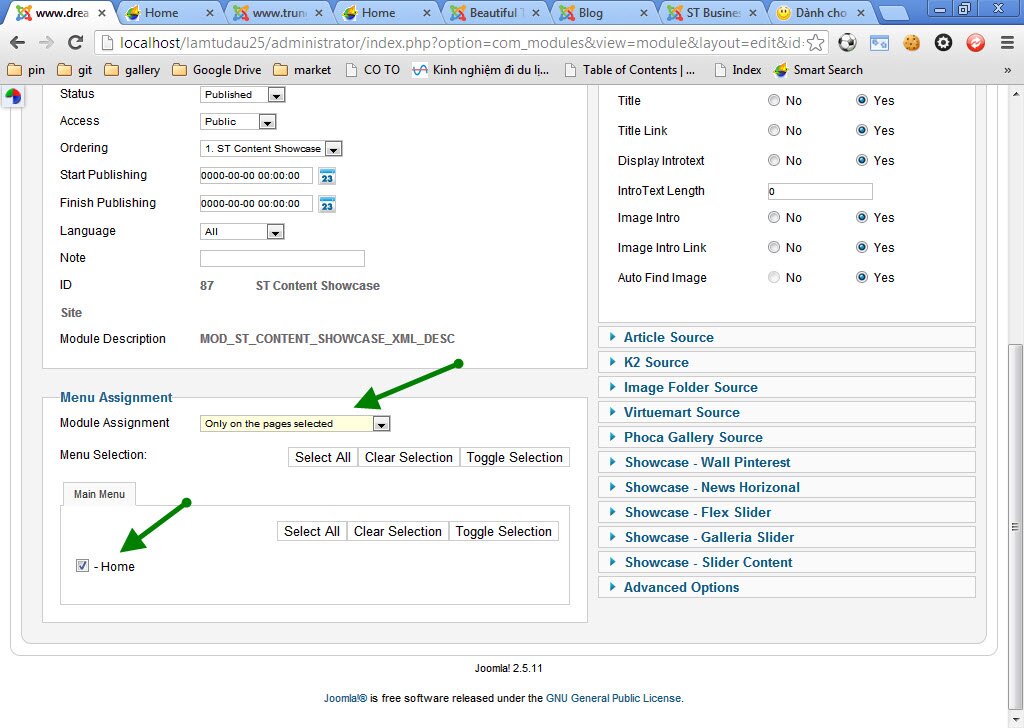
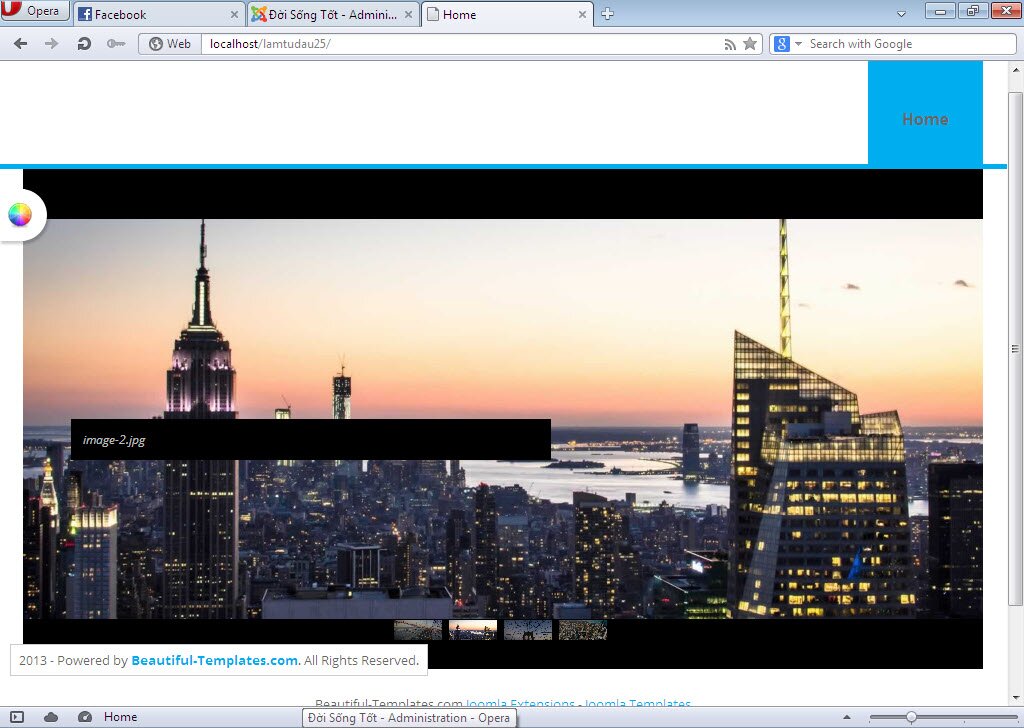
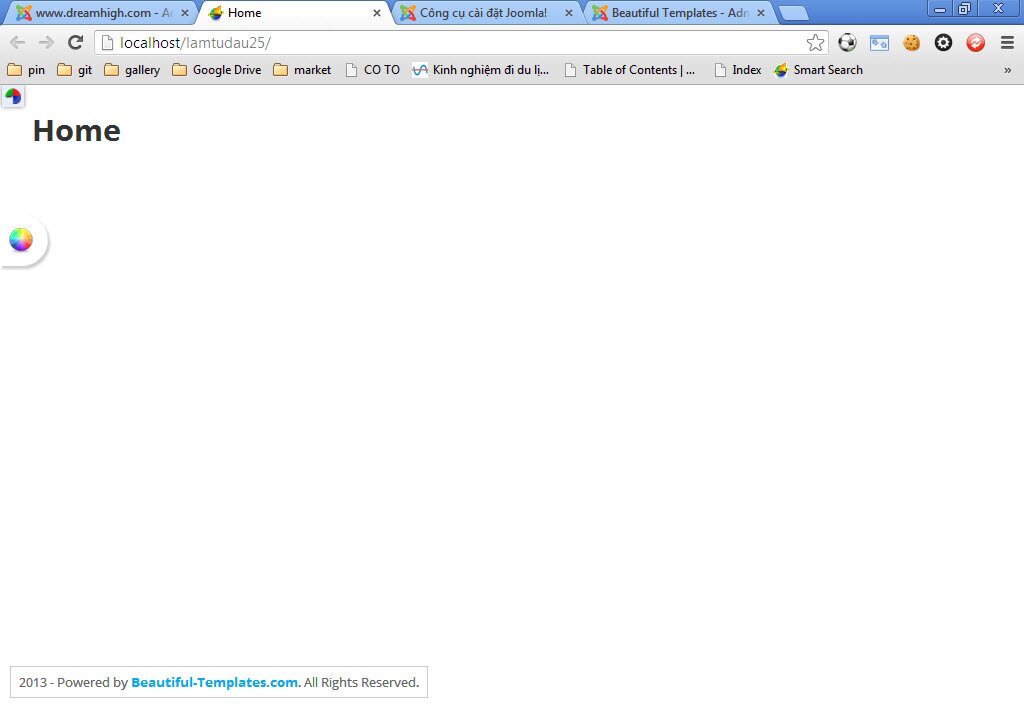
Finally, after fixing all information for site without quickstart, when clicking view site, your site will be shown as below: